
FAQs
Hosting & Email Frequently Asked Questions
Help Desk
Please submit a support ticket should you require assistance. Our support system is monitored 24/7. An agent will respond as soon as possible.
How do I set up my email on my computer/phone?
To set up your email on your mobile device or in an email application such as Outlook, use the following settings:
Important: Incoming Mail server: mail.silverbarrel.com
Important: Outgoing Mail server: mail.silverbarrel.com
User name: your full email address
Password: your password
Important: Incoming server port (IMAP): 143 or 993 for SSL connections (suggested)
Important: Outgoing server port (IMAP): 587
Important: Outgoing server requires authentication. Use the same as the incoming server (ie: same username and password)
Screenshots
Apple Mail (Mac) screenshots
Outlook (Mac) screenshots
Outlook (PC) screenshots
iPhone Mail screenshots
Android Mail screenshots
Outlook
In addition to the General Settings:
After entering your mail servers, user name and password, click More Settings.
In the Outgoing Server tab, check the boxes next to “Outgoing server (SMTP) requires authentication” and “Use the same settings as your incoming mail server.”
You can set your outgoing server port number to 587 in the Advanced tab. Your incoming server port number can remain the default.
To use email encryption, select TLS as your encryption method.
iPhone, iPad, Apple Mail
In addition to the General Settings:
In the Outgoing Mail Server (SMTP) settings, “Use SSL” should be turned on and Authentication should be set to “Password.” Set your Server Port to 25 or 587.
In the Advanced settings, “Use SSL” can be turned on under the Incoming Settings category.
How do I login to webmail?
To check your email online from any computer, head to webmail.yourdomain.com.
Enter your username & password for the desired email account.
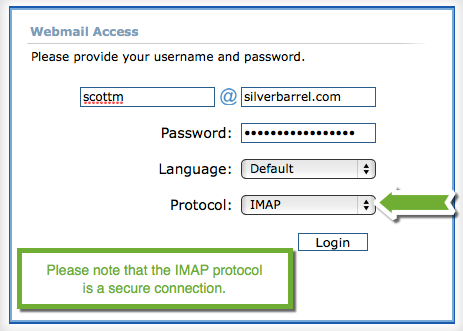
Important: If you’re using the Atmail webmail service, you’ll now need to select ‘IMAP’ rather than ‘Secure IMAP’ as the protocol when logging in.
Note: Although web mail is a convenient temporary resource, Silver Barrel strongly recommends setting up your email in an application such as Outlook, Windows Live Mail or Mail for Mac. This will allow you to save disk space on your hosting account by downloading your emails to your computer. You will also be able to back up your emails as part of whatever local back up routine that you use.
I can't login to webmail. When I try my username or password is rejected.
On Oct 28, 2014 we upgraded our hosting software including the Atmail webmail service to provide better performance and security.
Important: If you’re using the Atmail webmail service, you’ll now need to select ‘IMAP’ rather than ‘Secure IMAP’ as the protocol when logging in. Please note that with our latest security protocols, IMAP is just as secure as Secure IMAP.
DNS settings with Godaddy
To make the necessary DNS changes at Godaddy you’ll need to add 2 hostname records, then change your nameservers. Here are the steps required. Please follow along with the screenshot linked below for assistance.
- Login to your account
- Go to My Products
- Select the domain name that you want to mange
- Click Manage DNS
- In the DNS Records section, click on the More menu (3 dots)
- Click Host Names
- In Host Names
- Click ADD
- Add hostname ns1 with the IP address 74.50.52.129
- Click SAVE
- Add hostname ns2 with the IP address 74.50.52.132
- Click SAVE
- NOTE: it may take a few seconds for each of these to update
- Go Back to the DNS Management Section
- In the Nameservers section
- Click CHANGE
- Click Enter my own nameservers in the pop-up window
- Enter ns1.your-domain.com
- Enter ns2.your-domain.com
- Click SAVE
- Check the Yes, I consent box
- Click CONTINUE
It usually takes a couple of hours for these DNS records to propagate but can take up to 24hrs for all servers to pick up the changes.
I've changed my iPhone Mail settings but they're not working
We’ve found that iOS can be a little buggy when it comes to accepting changes to your Mail settings. Try closing the app and power cycling your iPhone, then reopen Mail. If this does not work, try deleting your email account on your iPhone, power cycle the iPhone, then set the email account up from scratch.
Important: Please ensure that you back up any email data that you’re storing locally on your phone before you delete any accounts. If you’re using IMAP, your mail will be stored on the server and not your phone.
I can't send email from my computer/phone!
While the causes of outgoing email errors can vary, a common error relates to attempting to send unauthenticated mail sent from some ISPs (and IP addresses).
Important: If you are sending mail through a standard email application such as Outlook, you’ll need to ensure that SMTP Authentication is turned on in your account settings. You can find this setting under the Outgoing Server tab. Simply check the box next to ‘My outgoing server (SMTP) requires authentication’ and select the option to use the same settings as your incoming mail server.
Also, try setting your outgoing port to 587.
How do I change my email password?
Log in to your hosting control panel here:
Select the domain name (if Silver Barrel is hosting more than one domain for you) then go to the Mail section. From there, select the specific email address and enter your new password.
What's the difference between POP and IMAP email?
Depending on your preferences, you can set your email up as either IMAP or POP. The main difference between the two is that POP email immediately downloads the mail directly to your computer, while IMAP keeps it on the server until you download it for archive/back-up purposes. From this standpoint, IMAP is more portable so we typically recommend using IMAP if you’re sending and receiving email from multiple devices.
Note: Please remember that any email stored on the server does count towards your total disk space usage. Over time, IMAP email can take up significant server space. When using IMAP email service, it’s recommended that you regularly remove mail from the server by filing it locally. Doing so will also allow you back up these locally stored emails as part of your regular backup routine.
Some emails I send bounce back to me and are not delivered. I get an SMTP 550 error.
Although there are many reasons why a sent email might bounce back to you undelivered, the SMTP 550 error is a common one that we see our clients having problems with. Google searching the error can often provide an answer to your specific issue.
Note: A common fix is to ensure that you have ‘My outgoing (SMTP) server requires authentication’ & ‘Use same settings as my incoming server’ both checked in the configuration of your email application.
Also, make sure that you’re using the correct incoming and outgoing mail servers as provided to you when you signed up for a Silver Barrel Soutions’ hosting account. Typically your incoming and outgoing mail servers will be ‘mail.silverbarrel.com’ but if you’re unsure, just submit a support ticket and we’d be happy to check for you.
SPF spam prevention requires that your IP address corresponds with the authorized IP address of your outgoing SMTP server. By using the Silver Barrel Solutions SMTP mail server that we provided and by requiring authentication, your email should meet SPF requirements and be delivered properly.
If you continue to have problems, please submit a support ticket and we’d be happy to help.
How do I use Gmail to send and receive email from my Silver Barrel hosted email?
All email accounts hosted by Silver Barrel Solutions can be set up in any email application, on any device and can also be accessed via our webmail service (see other FAQs for more information). Should you wish you utilize your Gmail account to send and receive your Silver Barrel hosted email, there are a few steps that you need to take from within your Gmail account to make this work. Click on link below for full instructions and screenshots.
Setting up my Silver Barrel hosted email in my Gmail account.
How do I log in to the hosting control panel?
You can log in to the hosting control panel by heading to the Silver Barrel Hosting Control Panel .
Enter the username and password that was provided to you.
In the hosting control panel, you can set up email addresses, change email passwords, monitor your disk space and traffic usage, and much more.
How do I check my disk space/bandwidth usage on my hosting account?
When you log in to your hosting account via the Silver Barrel Hosting Control Panel, your disk space usage is displayed at the top of the page.
You can view detailed resource usage by clicking Resource Usage under the Statistics heading.
I received an email saying that I’m approaching my resource limits! What does this mean and how do I deal with it?
This email is automatically sent to your account’s primary point of contact to let you know that one of your domains is approaching your disk space and/or bandwidth limits.
Disk space: is your domain’s overall hard disk storage space. Your disk space includes any files relating to your website and anything you may upload via FTP. Emails that are stored on the server also account for your overall disk space.
Bandwidth or traffic is the amount of data that is exchanged on your domain. This amount is reset each month. Bandwidth includes traffic to your website, files that are uploaded to or downloaded from your site, and emails that are sent or received on your account.
Here are some helpful tips for reducing your disk space and managing your bandwidth usage:
Download emails from the server. As a best practice, we recommend downloading email to your local machine on a regular basis using your email application of choice (such as Outlook, Windows Live Mail, or Mail for Mac). You’ll save a significant amount of disk space over time and will also be able to back up your emails as part of whatever local backup routine that you use.
Only store files that are relevant to your website and delete any unused files that you have uploaded via FTP.
Use tools like DropBox™ to send/share large files as opposed to email or FTP, which will contribute to your bandwidth usage when sending/receiving and uploading/downloading.
You can review your current resource usage at any time by logging into the Hosting Control Panel. Once logged in, click Domains. Click on the domain that you would like to review, then click Resource Usage.
If you feel that you’d benefit from more space or bandwidth, no problem! Just submit a support ticket and we’d be happy to make any recommendations.
I'm moving my hosting to Silver Barrel Solutions. What can I expect?
Once you talk to Silver Barrel about your hosting needs, we’ll make the necessary arrangements to set up your hosting account on our servers and will help you change the DNS to point your domain name to your new hosting account. We typically make these adjustments during non-business hours to avoid any interruption.
Before we initiate the change, we’ll send you a hosting information sheet which will contain all of the user names, passwords and settings you’ll need to set up your email and manage your account. At this point, you can add your new email account to Outlook, or your email application of choice, as well as any mobile devices.
Note: Once we initiate the switch, it can take up to 48 hours to complete (propagate). You’ll know that the switch is complete when you begin receiving emails on the new account. Your old account will also begin to display errors when sending and receiving. At this point, you can delete the old mail accounts from your email application.
Note: To avoid any conflicts, it’s important that you remember to cancel your email/hosting accounts with your old provider once we confirm that the move is complete.
How do I transfer a domain name?
Transferring TO Silver Barrel:
Login to your account at your current domain registrar and request the domain authorization codes. These will be emailed to the administrative contact that you originally set for that domain. Once you receive your domain authorization codes, simply forward them to Silver Barrel Solutions and we’ll take care of the rest. Please note that your domain(s) should be ‘unlocked’ before transferring.
Transferring FROM Silver Barrel:
Submit a support ticket requesting your domain authorization codes. A Silver Barrel representative will obtain the codes and email them to you. From here, you can use the codes to transfer the domain name to a registrar of your choice.
Note: Please note that most receiving registrars charge a transfer fee that is usually equal to one year’s domain registration.
Note: If your domain has been transferred or renewed in the past 60 days, ICANN rules do not allow it to be transferred until after this waiting period.
Why are you upgrading your servers and how does it benefit me?
We’re committed to providing a high quality website hosting solution for our customers. It’s important to us that our servers are fast, secure and reliable while running the best industry software. A server is essentially a computer that resides in a secure data center where all of your email and website files are stored. Like any technology, things become outdated and as the internet advances, hardware resources like RAM memory and processing performance need to keep up.
For this reason, we routinely decide to upgrade our servers hardware and software. This process involves setting up a completely new server with improved specs along with a full suite of the necessary server software and a revamped control panel. After significant testing, we begin the process of moving sites, as necessary, to the new platform.
We deal with each client’s move on an individual basis to ensure that nothing is overlooked. In most cases we reset all passwords associated with the hosting account to ensure that all is safe and secure. We also review any website software, like blogs or CMS platforms, and recommended any necessary updates. Emails are stored in a format that is not readable to us during the transfer so your privacy is protected. Finally, all website components are tested to ensure compliance and proper performance on the new server.
Some of the benefits that you’ll enjoy with the new server environment are:
Improved performance which means that your website will load faster and handle even more traffic than before.
In many instances, hosting package specs such as server space and bandwidth limits were increased.
Email connectivity to the server is faster and even more reliable.
Our new hosting control panel allows for better management of your account. Managing your own email accounts and viewing statistics has never been easier.
Most website software (if applicable) was reviewed and any necessary updates were recommended.
Our new webmail application is much easier to use…and looks a whole lot nicer!
All behind-the-scenes server software was updated to the latest, stable and secure versions.
We hope that you enjoy these ongoing improvements. Should you have a question or need assistance, simply pop in a support ticket and we’d be happy to help.
Safety & Security
Our web servers are professional, reliable and modern. We provide the support you need to keep your website running smoothly.
Solid Development
We use popular web development platforms like WordPress™ and Drupal™, which ensure that your website is robust and easy to update.
24/7 Support
Our online help desk is always available for your support requests. We also monitor it around the clock for service emergencies.